 |
 |
  |
 |
  |
 |
 |
|||
 |
 |
 |
 |
 |
||
| reference articles | competition journal | piping links | FAQ | contact me |
Andrew's Bagpipe Tips: Guide to abc Music Notation for BagpipesBy Andrew T. Lenz, Jr., Santa Cruz, California, ©2004-2019So you want to write bagpipe music. Or transcribe an old tune into something a little more legible. You could purchase a high-powered general music writing program such as Finale Or you can write bagpipe music using abc music notation. This page will cover the abc format how it relates to bagpipes. You won't have to wade through manuals reading a bunch of specifications (like how to do chords, for instance) to uncover a gem that pertains to our specific type of music. However, these manuals, such as How to interpret abc music notation One nice thing about abc notation is that a lot of the abc programs available are either shareware, freeware, or open-source. That is, you don't have to pay for it unless it works well for you and you wish to support the authors to keep them interested in upgrading the software. abc NotationChris Walshaw was traveling around Europe in 1991 and needed an simple and compact method of writing down flute tunes that he was composing—though he was also a piper at the time. The method he dreamt up became abc music notation. Each note is assigned letters, such as Low-A is indicated "A". The following table shows the letters associated with scale of the Great Highland Bagpipes.
Chris Walshaw's home page for abc abc Plus/abc 2.0People outside the realm of folk music realised what a great solution abc notation was and wanted to expand abc notation to include multiple voices and extensions for classical and other more complex forms of music. Some people made up their own extensions to abc and, of course, this caused compatibility issues. In an effort to organize all these extensions into a 2.0 abc standard, the The ABC Plus Project The processThe typical process of creating a high-quality score goes something like this:
Fortunately, programs these days can take you from tune entry right to printing high-quality results. Selecting a program to enter your abc tuneSince abc is text based, you can simply use a text editor to write your abc tunes: NotePad, TextEdit, Word, whatever. But there are programs available that will show your notes on a music staff as you type and this visual feedback is a great way to ensure you are entering the tune correctly. Some will even play your tune back for you to hear without even leaving the program. For the Macintosh, I used to recommend Barfly, it was a really good piece of software dedicated to abc notation but it's been discontinued though fortunately, there's now EasyABC For Windows and other operating systems, visit one of the ABC projects pages and try a few programs to see what you prefer, but EasyABC is intuitive. If for some reason you don't like EasyABC, ABCedit looks good and also prints high quality output directly to PDF files. While most will get you clean output, you may find that an abc editing program may not necessarily be intended to print high-quality scores. If you don't get clean results, you may need to use a converter, such as abcm2ps, to yield a high-quality PostScript file from the abc file. (abcm2ps is discussed near the bottom of this article.)
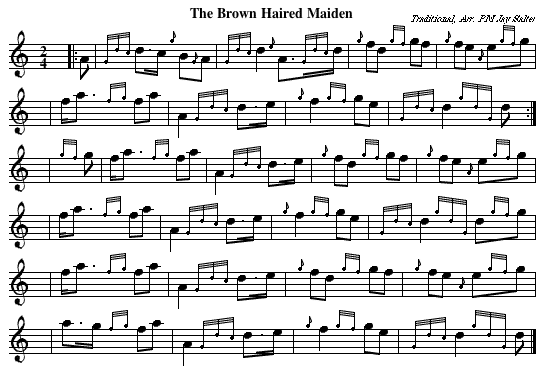
Writing MusicWe've already seen the basic notes in the table above. Here's an example of an abc notation tune: X:1
Here's a screen shot (work screen) of the now-disontinued Barfly program for the above tune: An example of the above tune as much nicer resulting printable sheet music (PDF format, 26K) is available which was generated via abcm2ps. (We will discuss abcm2ps later.) You can also make the beams perfectly horizontal, which is another option. Sections of an abc notation tune. An abc tune is composed of two sections, the header and the body of the tune. The header contains the specifications for the tune and the body contains the musical notes themselves. The Header. I'll break down the header line by line, beginning with the first. X:1 The above line assigns a number for that particular tune in the file. Even if there's only one tune, always include this line. The next tune in the file would typically be labeled "X:2". All tunes in a file need to have unique integer numbers—though not all software packages enforce the unique number requirement, it's good practice to follow the rules. T:Brown Haired Maiden Title. If you also want a subtitle, use two "T:" lines like this: T:Brown Haired Maiden N:Very common tune. Notes. This is just a means to add general comments in the abc file. It won't show up in any printed scores. Z:Transcribed Sept. 28, 2003 by Andrew T. Lenz, Jr. Transcription notes. Another line that doesn't show up in any printed scores. C:Traditional, Arr. PM Jay Salter Composer. As with the title, if you wish to include a second composer (like giving yourself credit for the transcription work), just add a second "C:" line. R:March Rhythm, e.g., Jig, Reel, March. There isn't a set group of categories—that is, you can put whatever you want here—though sometimes if an authoring program recognizes the stated rhythm, playback may be improved. Your stated rhythm often appears on the upper left of the printed score. M:2/4 Meter or time signature. You can also include M:C for common time (4/4) or M:C| for cut time (2/2). L:1/8 Now this gets a little more interesting. This line is used to modify the default note length. The default note length will be an eighth note (1/8) if the value of the meter is equal or greater than 0.75 (i.e. 3/4 or 4/4 time), or it'll be a sixteenth note (1/16) if the value is less than 0.75 (i.e. 2/4 time). The "L:" line is used to either make this default explicit or change it from the default. For instance, if the tune has a lot of 1/16 notes, you'll probably want to include the line "L:1/16". For notes of values other than the default value, you'll have to add a modifier in the body of the music to change that note's value—the less of these modifiers, the less work, so plan ahead. You could also put an L: in the middle of a tune to change the default length for the remainder of the tune, if for some reason this saved a lot of typing on your part. Q:1/4=80 Tempo. We could just do Q:80 , but then the tempo would be 80 notes per minute of whatever the default note length happens to be. By including a specific note length, we can set it to something other than the default or simply be very clear as to what we want, in this example, a tempo of 80 quarter notes per minute. Depending on the program, this may—or may not—print out on the score. It's handy for playback in your software, but you might want (or need) to remove it or "comment it out" to omit it from the final score. K:HP Key. "K:HP" follows piping tradition by skipping the key signature on the music. The alternative is "K:Hp" which marks the stave with F-sharp, C-sharp and G-natural. Either one of these, HP or Hp, will make all the melody stems to point down and gracenote stems to point up—plus it will keep the gracenotes from being tied to the following melody note! (See Tweaking abcm2ps output below for other things to do to make sure you get conventional bagpipe style output.) By the way, the point of using the conventional codes for non-printing notes/comments (such as Z:) is that you could search though an abc database looking at specific fields—just a way of possibly helping refine a search later on. Other codes are A: (area of tune origin), B: (book), D: (discography), H: (history), S: (source). There are some others you can investigate if you wish to pursue using these codes. Tune basics for the body of the tune. A single line of abc notation will equal a single line on the resulting sheet music. If an abc line is getting too long, but you still want it on a single line on the output, insert a "continue line" indicator \ and then continue on the next line. (Anyone familiar with the Unix command line will feel at home with this!) Or if your line is getting too long in the output, simply break up your abc notation onto another line at the end of a bar and that will be reflected as a line break in the output as well. Feel free to leave space around your bar lines or groups of notes to improve readability, since in that context the spaces are ignored in abc notation. Though keep in mind that if you wish to have a series of notes all connected with one beam, there cannot be spaces between the notes. Likewise, if you wish to have adjacent notes' beams not connected, add a space between them in the abc notation. A critical thing to know, blank lines indicate the end of the tune. But since we can't use blank lines to improve readability, we can separate the parts of a tune vertically by putting in the "continue line" indicator \ where you would normally leave a blank line or where you would otherwise want to end a line in the abc notation, but not in the output itself. Gracenotes are indicated by placing the notes between curly braces: {}. So a High-G gracenote would be indicated by {g} and a light D-throw would be: {Gdc}d . Barlines are indicated by the pipe symbol | . The tune ends with a double bar: ||. A double bar with the first of the two bars lighter than the second (thin/thick) is indicated by |] . A double bar with the second of the two bars light than the first (thick/thin) is indicated by [| . Changing note lengths. To make a note longer, you put a multiplier after the note. To make a note shorter, you use the divide sign "/" followed by the fractional value. A handy feature for tunes with swing—like a strathspey, for instance—is the greater-than ">" and less-than "<" symbols. By using a ">" between two notes, the first note will have it's duration increased by half and the following note will have its duration decreased by half. (That is, the first note gains a dot and the second note gains a flag.) An example, without using the ">" and "<": e3/2f/2 g/2e3/2 but using the shortcut, it would appear as: e>f g<e and would be rendered (assuming the default note value of a 1/8th note):
Repeats. Simple part repeats are pretty easy, just place a |: at the begining and a :| at the end of the part. If the end of one repeated part bumps up against the beginning of another repeated part, it can be indicated by :||: (clearest) or also by :: (shortest). Repeating from a specific point is done by using a square bracket followed by the repeat number: [1 and [2 . For instance: |: {Gdc}d3/2c/2 {g}B{G}A |[1 {Gdc}d2 {e} A3/2{Gdc}d/2 |[2 {g}fd {gf}gf || would appear on your screen as:
When the repeat numbers are immediately following a bar, the [ can be eliminated, .i.e. |[1 becomes |1 . (On the other hand, I like to be explicit, so I tend to leave the brackets for clarity.) If the begining of the repeat starts in the middle of a bar somewhere, you need the [ . If you aren't getting quite what you want, experiment with closing the repeat with a ] . A bit more advanced stuff. Text Annotation, adding text to the staves. Sometimes it can be helpful to add comments to the tune somewhere in the staves themselves. The text annotation code is placed anywhere in the body of the abc notation, but the text must appear within leading and trailing double-quote marks ("). Inside the initial double-quote character, text annotations have to start with one of five characters: ^ _ < > @ . Just an example: {Gdc}d3/2c/2"^Don't cut this C note!" | {g}f2 {gf}ge Text annotation could also be handy for creating the embellishment abbreviations seen used in piobaireachd such as for the crunluath and taorluath variations. Comment lines. If you wish to make a comment in an abc file which will not show up in the final score, know that anything to the right a percentage sign until the end of that line is ignored. So you can start a line with % or insert a % where you want to start comments. Or if you wish to comment out the tempo line in the header, just throw a % in the front of that line. Just don't start a line with two percent symbols as these indicate a line with special formatting instructions. Slur. To indicate a slur, that is, a gradual slide to another note, place the notes between parens, such as : (de) . This will add an arc connecting the two notes. Triplets, Quadruplets, etc. The official way to render a triplet is a paren ( , followed by a 3 then the three notes in question, such as: (3efg the above will render three notes tied together with a "3" to indicate a triplet. Depending on the software, this "3" may end up below the notes. Sometimes to get the indicator above the notes, you have to cheat a bit, by using text annotation and slurs together, such as: (f"3"ga) which would appear as:
Naturals. A few notes can be played as naturals on a bagpipe chanter. This is indicated by putting an equal sign before the note. For instance, a C-natural would be =c . Fermata. Sometimes you'll see a fermata symbol over certain notes in a piobaireachd score to indicate the piper may deviate from the written music and hold that note longer than the printed note value. If you want to include this in a tune, you have a couple of methods to try. The older unofficial—but often recognized—extension is to simply put the letter H before the note above which you wish the fermata to appear. However, the abc 2.0 draft calls for the user to add +fermata+ instead. Some programs recognize the first method, but others recognize the second unfinalized draft method. Other stuff. There are all kinds of things you can do with ABC Plus, including lyrics, guitar chords, etc. If you want to do any of this then go the ABC Project home page and read the manual. We're not going to cover that here. Translator for Bagpipe Music Writer (BMW/BWW) filesPatrick McLaurin has written an online BMW to abc converter which may come in handy for converting tunes you've scored in Bagpipe Music Writer to abc notation files. Patrick's converter may not work well for all BMW files. Any questions about it should be directed to Patrick.
Converting abc notation to a printable score.There are a few ways to get from abc notation to a physical sheet of music:
Programs. On the Windows platform, you can use EasyABC or ABCedit abcm2ps. The program abcm2ps is the engine used by EasyABC and most programs to convert abc to PostScript (then later to a PDF file using a different program). abcm2ps requires some explanation and is discussed at length below. There's not much reason to use abcm2ps unless the program you are using can't provide output that you want. Using abcm2ps allows you to go in and specifically tweak things to your liking. abcm2ps.This section is for nerdy people since most people will simply print from their abc editing software. Once you have written a tune using abc notation (or abc Plus notation for that matter), you'll want to generate some nice sheet music. Arguably the best program for generating Postscript files from abc notation is abcm2ps Tweaking abcm2ps output.The default output from abcm2ps does not follow pipe music conventions, so you'll have tell the software what you want by using formatting commands (or "flags" if you use them at a command line). You give abcm2ps these formatting commands in one of three ways. You either apply them at the command line following this pattern: %% abcm2ps -flag input_file.abc but that can be cumbersome. Fortunately you can also include the commands as "comment lines" in the abc file itself at the top of the file above the header, which I like to do. %% command value If you are creating a number of tunes and want a consistent look, you can either copy and paste the formatting commands into every abc file or you can create an external "format file". An example of such a file, say bandformatfile.fmt would be: % format file The formatting commands are the same as you'd use in the file itself but without the %% in front. The formatting commands. Note: "boolean" is short for boolean value, that is, it's either 1 ("true" or "yes") or 0 ("false" or "no"). Formatting commands default to 0. "string" is another name for a series of characters (such as font name). When you use these formatting commands, replace boolean with "1" or "0", value with a number, and string with appropriate text. The following first of these two commands I consider essential for getting good bagpiping sheet music, though the second is a matter of taste—some don't like it—so try and see what you prefer. %%straightflags boolean if 1, print straight flags on stems, which is typically desired for pipe music.%%flatbeams boolean if 1, forces flat beams (for gracenotes too), which is used in some published pipe music, but can be harder to read.
The following commands are handy for making things a bit more pretty. %%landscape boolean if 1, set the page layout as landscape (wide) instead of portrait (tall). %%scale value Value is a number between 1 (100%) and 0 (0%), e.g., 0.65 is 65%. %%titlefont string font of the first T: field. %%subtitlefont string font of the second T: field. %%composerfont string C: field font. %%stretchstaff boolean stretch underfull staves to full width. %%stretchlast boolean stretch last stave to full width. %%topmargin value set the margin for the top of the page, e.g., 1.125" %%rightmargin value set the margin for the right side of the page. %%leftmargin value set the margin for the left side of the page.
For formatting commands (like the ones mentioned above) that accept font names, you may also include a point size as another field after the font name, like: %%titlefont Helvetica 24 would set the title in the Helvetica font face with a size of 24 points, which incidentally, is approximately 1/8" (about 32mm) in height. Another command that may come in handy is this one which sets a footer to appear on each page. There are other formatting commands which you can use, but you'll need to refer to one of the abc/abcm2ps guides to explore them yourself.
Standard supported Postscript Fonts: Additional instructions for abc2ps can be found here.
Tweaking abcm2ps playback.If you are using a program that handles abc notiation and the timing of gracenotes is problematic during playback, the following addtion to the header of the file may prove useful: %%MIDI gracedivider b The variable b specifies how many parts to divide the unit length specified by the L: field command. For example, if you set b to 8 and L: = 1/8, then every grace note would be 1/(8*8) or a 64nd note. (A 64th is a good place for you to start experimenting.) Time use for the grace note will be taken from the note to which the grace note is applied, but if that note is not long enough to handle time needed for the grace note then the grace note(s) would be assigned a value of 0 (zero) duration and not sound during playback.
Installing and running abcm2ps on a Macintosh under OS X.Since Macintosh users currently don't have a lot of selection of compatible bagpipe scoring programs (other than CelticPipes)—and it's the computer that I have easy access to!—we'll concentrate on running abcm2ps on this particular platform. Download. Installation. If you have a package file (not a folder) then double-click this downloaded package file to launch installer and follow all the steps (accept license, choose your drive location, put in your password, etc.). With an installer, you can skip to the next section "Making your life easier". IMPORTANT: If you are are messing around with the Terminal program, which we'll be doing below, know that commands, file names, and directories are all case-sensitive. In other words, if it's lowercase character don't change it to a capital or vice versa! If your abcm2ps download results in just a folder (it might be named something like "abcm2ps 5.9.23"), read the READ ME file, but don't follow the instructions, I'll tell you here what you need to know. The abcm2ps executable "binary" program (OS X calls it a "Unix Executable File") goes into what is more or less a hidden location on your hard drive, the /usr/local/bin directory. From your Mac desktop's Go menu, select Go to Folder... option. Type in /usr/local/bin then click "Go". If you get a message that says "The folder can't be found." then follow the instructions in the following box. Otherwise, skip to the paragraph after the box.
You should have a window open on your desktop that says "bin" at the top. Just drag the abcm2ps file into that window from the folder you downloaded. Bingo! You just installed abcm2ps! Now, the READ ME file will tell you to copy the remaining files (the ones ending in ".abc", ".fmt", ".txt") to another hidden folder (/usr/local/share/abcm2ps/), but here's the scoop on those other files. It's probably better if you don't put them into the recommended (inconvenient) folder. Just pick a place on your hard drive where you can easily access these files just as you would any other typical files you keep around—without having to bother with "Go to Folder..." Those files are ones you'll want to either read with TextEdit or manipulate for testing with BarFly or some other abc notation editor. It's nice to have them handy.
Making your life easier later. At the command line prompt—usually ends with a "%" or "$" symbol—type: Note: always press the [RETURN] key after entering lines. The "cd ~" command puts you in your home directory (just in case you are not already). Now, as of Mac OS X 10.3 (Panther), Apple set the default Unix command shell to be bash. If you have an older computer and upgraded to 10.3 or later (rather than a clean install) you may still be running the alternative tsch Unix shell. If you are not sure what shell you are running on your system, at the prompt type: Why am I talking about this? Each has shell slightly different formatting for some commands and this applies to what we want to do, so you'll need to do one of the two following series of commands. If you are running bash, which is the more likely scenario: At the prompt, type: Then press CONTROL-D to end input (at the start of a new line). Then type the following at the prompt: source .profile However, if you are running tcsh: At the prompt, type: Then press CONTROL-D to end input (at the start of a new line). Then type the following at the prompt: source .tcshrc This source command makes the changes you've made immediately recognized by the system—otherwise, that'll happen only after you either logout or reboot the system. In case you used an installer package that placed the files for you and you are curious, the abcm2ps files are installed in the following directories/folders: The executable program: /usr/local/bin/abcm2ps Running the program. You will need to run the abcm2ps program using the Terminal program. At the Unix prompt, type: abcm2ps -O = at which point you can simply drag and drop your abc file to the Terminal window and press "return" to have a Postscript file generated. (And note that is the capital letter "O" immdiately after the dash above, not a zero.) The "-O =" after the abcm2ps command tells the program to name the file it generates based on the name of the abc file you give it. One nice thing is if you change something in your .abc file, then run abcm2ps again, it'll simply overwrite your previous .ps file with a new one—no having to throw away a file first or confirming you want to overwrite, it's just done. If you want a full list of options for the abcm2ps program, simply type abcm2ps at the prompt and a list of them will be given.
Extras. If you want, by repeating the steps above—cat, instructions, control-D, source—but replacing the "PATH=$PATH..." or "set path..." line with the one below, this will make it so you can simply type "abc" at the prompt in the future instead of "abcm2ps -O = ": You can avoid possible errors by remembering to include the space after the "=" in the two lines above. (And again, that is the letter "O" after the dash, not a zero.) Here are a couple of Unix shortcuts to type at the Terminal prompt: !! = execute the last command In other words, after executing abcm2ps once (without quitting Terminal) if you edit your abc file, save it, switch back to Terminal, type "!!" and press return, and a new .ps file will be generated. For me, I create a file in Barfly, run abcm2ps, check the result in Preview by double-clicking the .ps file, switch to Barfly to tweak the abc file, save, switch back to Terminal, !!, then check the result, and repeat until I'm happy. It's very quick.
Troubleshooting output. One of the most common errors that you will see when running your abc file through abcm2ps will be something like: Warning in line 9.109: Line overfull (692pt of 670pt) This means that your lines are too long. You several options: 1) Break your lines up in the abc file so that less bars are on one line. For instance, maybe use four bars on a line instead of eight. 2) Change your page from a vertical (portrait) format to a horizontal (landscape) format. Add the line %%landscape 1 in your abc file above the "X:" line, where all formatting commands go. 3) Scale your output so that the barlines, notes, etc. are all smaller and will fit on the page. Add the line %%scale 0.75 in your abc file above the "X:" line, though you'll want to experiment to determine the proper scaling. 0.75 will scale the score to 75% of it's normal/default size. You'll typically want to make that scaling number as large as you can while still getting the score to fit properly on the page. ClosingHopefully, this will help make your life easier. If you have specific questions related to writing bagpiping scores with abc notation, feel free to drop me a note. I may or may not have an answer for you, but questions will help improve this page. Or if you are feeling adventurous and are willing to check the manuals mentioned earlier on this page and can provide me with something to add—without as much work on my part!— please contact me.
If you have comments or suggestions about this page, please contact me. This page last updated Sunday, February 2, 2020. |
 or
or 





| sitemap | ||
 |
 |
||
 |
|||

